
Featured in this article
to love about a Kindle if you’re a reader. If you’re looking for the best Kindle, you really can’t go wrong with any of the models. These Amazon-powered ebook readers let you bring thousands of books anywhere and typically give a month of battery life per charge. You can subscribe to get unlimited books from Amazon or get free books from your local library. Our guide will help you decode the differences to find which Kindle is right for you.
I’ve owned all kinds of Kindles, from the newest Kindle Scribes to hand-me-down base Kindles without a front light. The latter came from a friend who noticed I had spent my entire postpartum summer glued to library books on my phone, and I still have it to this day. But after trying all of the latest Kindles, I can say it’s easy to spot the best one.
Read on to find out my favorite overall Kindle and my favorite Kindles for specific uses and younger readers. You can also check out my other buying guides made for readers like me, including the Best Kindle Accessories, Best E-Readers, Best Digital Notebooks, and Best Gifts for Book Lovers.
Updated August 2026: The second-generation Kindle Scribe has been updated to be our pick for students, and prices have been updated throughout.
-
The Best Kindle
- Photograph: Nena Farrell
- Photograph: Nena Farrell
Kindle Paperwhite (2024, 12th Generation)
You came here to find out one thing: What is the best Kindle? The Kindle Paperwhite is Amazon’s most popular Kindle and our favorite after testing every model, thanks to its great range of features. You’ll get a large display with high resolution and warm lighting, and the technology inside has a fast and smooth performance. Amazon launched the 12th-generation Paperwhite in late 2024, and it’s been our new favorite ever since. Whether you want to read more or are tired of carrying physical books, all the extra features are worth the price. The basic Kindle may seem enticing, especially with the fun new colors it offers, but the Paperwhite will serve you better in the long run, especially if you’re a nighttime reader like I am. The warm lighting is a great option on the eyes before bed.
If you already have a Paperwhite, the update isn’t so major that you need to upgrade to the newest model, but it’s the best to choose if you’re shopping for a brand-new Kindle. You’ll get a slightly larger screen and the highest contrast ratio on any Kindle, not just of the Paperwhites. The battery life also increased from two months to three months, and it has the thinnest form factor yet. The 12th-gen Paperwhite has two versions: the standard and the Signature Edition. The latter comes with auto-adjust brightness, wireless charging, and double the storage at 32 gigabytes. The regular Paperwhite is more than enough and easily one of the best Kindles to buy, but if you plan on buying the model without lock-screen ads, you may as well pay the extra $20 for the Signature Edition.
Display 7 inches, adjustable warm light (Paperwhite); Auto-adjusting front light (Signature Edition) Dark Mode Yes Resolution 300 pixels per inch (ppi) Storage 16 GB (Paperwhite) | 32 GB (Signature Edition) Weight 7.4 ounces (Paperwhite) | 7.55 ounces (Signature Edition) Battery / Charging Up to 12 weeks; USB-C (both models), Wireless charging (Signature Edition) Waterproof Yes, IPX8 WIRED/TIRED
WIRED- Seven-inch, high-resolution display
- Auto-adjusting warm light
- Three-month battery (the longest Kindle offers outside the Scribes)
TIRED
- No color options
-
Best for Students and Note-Takers
- Photograph: Nena Farrell
- Photograph: Nena Farrell
- Video: Nena Farrell
Kindle Scribe (2nd Gen, 2024)
Students who want something digital to take notes on but who also love to read will love a Kindle Scribe. While there’s a new version of the Scribe out that’s also great, the best one is still the second-generation Kindle Scribe from 2024.
This model has the same 10.2-inch (300 ppi) paperlike display as the first iteration, but it has a white border for a more notebook-style look, and the new Premium Pen is not only included but also has a soft-tipped eraser at the end. Personally, this is my most-used Kindle because I love to scribble notes and ideas all day long. It’s easily my most-used Kindle and digital notebook because of the long battery life (12 weeks!) and the convenience of grabbing it for both my reading and note-taking needs. While I don’t have as many options and layouts as I would on a true digital notebook, the Kindle Scribe still offers a handful of options to help me free up most of the ideas jumbling around in my brain, and solid options for students.
The second-gen Scribe also packs new software capabilities, even if it’s the slightly older model. Active Canvas lets you write directly in the book you’re reading, though it won’t work like true annotation—instead, the notes will appear in a small square on the screen like a Post-It note. That means it’ll always be there if you resize the screen, but it didn’t feel as natural as our testers would’ve liked. There are now Expandable Margins as well that let you write notes in the side panel of books, which feels a little more intuitive, but still isn’t the full annotation experience you might want.
There are also a couple of generative artificial intelligence features. The Refined Writing tool transforms your notes into a script font, while Summarization will quickly summarize pages of notes into bullets with a script font that you can then share from the notebook tab. Both features work well, but I never find myself reaching for them. These new software features can be downloaded onto first-generation Kindle Scribes if you already have one, or you can wait for an over-the-air update to hit your device. There are now three new Kindle Scribe models, which I detail below, but I still prefer this model.
Display 10.2 inches, adjustable warm light, auto-adjusting front light Resolution 300 pixels per inch (ppi) Storage 16, 32, or 64 GB Weight 15.3 ounces Battery / Charging Up to 12 weeks, USB-C Waterproof No WIRED/TIRED
WIRED- Has a digital notebook section so you can switch between reading books and writing notes
- Larger display to make writing comfortable
- Included stylus, with comfortable and smooth writing experience
- Notes can be accessed on the Kindle app if you leave your Scribe behind
TIRED
- No color options
- Bigger size that isn’t as convenient to carry or hold up as smaller Kindles
-
The Colorful Kindles
- Photograph: Nena Farrell
- Photograph: Nena Farrell
Kindle Colorsoft and Colorsoft Signature Edition
Amazon (Colorsoft Signature Edition)
Amazon now has two versions of its colorful Kindle. There’s the Kindle Colorsoft Signature Edition, which came out last year and was Amazon’s first-ever model with a color screen, and now there’s a basic Kindle Colorsoft. It competes with colorful models we’ve already seen from Kobo and Boox, so while it’s new for Amazon, it’s not new in the world of e-readers. Both models have a 7-inch display with an oxide backplane for speedy performance and higher contrast for both color and black-and-white content. The front light has also been changed to include nitride LEDs, which enhance color and increase brightness.
The Colorsoft Signature has a few extra features, but it also comes with a higher price tag. You’ll get twice the amount of storage—32 GB to the base Colorsoft’s 16 GB—wireless charging, and an auto-adjusting front light. It’s a nice set of add-ons to get for just $20 more if you know you’ll use the wireless charging and want an auto-adjusting light, but unless you already have a wireless charger you love, you’ll probably be just as happy spending $20 less. It’s already a hefty increase for the color screen and no other new features. The good news, at least, is Amazon did launch Dark Mode for Colorsoft, which it previously didn’t have.
There’s also now a Colorsoft version of the Kindle Scribe, but it’s much more expensive. You can find more details on that and the other new Kindle Scribe model below.
Display 7 inches, adjustable warm light (Colorsoft) | auto-adjusting front light (Colorsoft Signature) Resolution 300 ppi (Black-and-White), 150 ppi (Color) (both models) Storage 16 GB (Colorsoft) | 32 GB (Colosoft Signature) Weight 7.6 ounces (Colorsoft) | 7.7 ounches (Colorsoft Signature) Battery / Charging Up to 8 weeks; USB-C (both models) and wireless charging (Colorsoft Signature only) Waterproof Yes, IPX8 (both models) WIRED/TIRED
WIRED- Color screen!
- Has two months of battery life
- Colorsoft Signature Edition has extra features like wireless charging and an auto-adjusting front light
TIRED
- Would be nice if more features were added for the price difference between this and the Paperwhite
-
The Best Kindle for Kids
- Photograph: Nena Farrell
- Photograph: Nena Farrell
- Photograph: Nena Farrell
Kindle Colorsoft Kids
I’m a parent of a young kid, and the books in our house are very, very colorful. We’re still getting started on reading, but pulling up a book on the colorful Colosoft Kids is a much more fun experience than a black-and-white option. The color makes everything more engaging: The bookshelf of your books! The options to choose from on Kids+! The pages in the illustrated books themselves! Having a colorful option is something a lot of users want, but I think kids of all ages have the best chance of really getting the most use out of it. They can enjoy everything from picture books to graphic novels with full-page color, and add colorful highlights to books they want to annotate or study. It’s not quite as vibrant as a digital screen or color on paper since it’s an E Ink screen, but it’s still a fun feature that adds to the reading experience.
You can technically turn on Kids mode on any Kindle, so you don’t necessarily need a Kids-branded model (there’s both a basic Kids [$130] and a Paperwhite Kids [$180] model) to have your kiddos read books separated from adult ones. But the real benefit is that Kids models, whether it’s the Colorsoft or a black-and-white model, come with free access to Kids+ for six months to a year. Kids+ is Amazon’s subscription service that features tons of age-appropriate books. The Colorsoft Kids gets the longest access, a full year, while the other models will only receive six months. That extra six months, plus colorful pages, really make going for a kid-specific model worth it. The Colorsoft Kids is also waterproof and comes with a colorful cover (you get to choose between two fun designs).
Display 7 inches, adjustable warm light Resolution 300 pixels per inch (ppi) Storage 16 GB Weight 11.8 ounces (with case) Battery / Charging Up to 8 weeks; USB-C Waterproof Yes, IPX8 WIRED/TIRED
WIRED- Great for colorful kids’ books
- Free Amazon Kids+ content for a year
- All the benefits of a regular Kindle
TIRED
- Colors are muted compared to printed children’s books
-
The Cheapest Kindle
Photograph: Nena FarrellKindle (2024, 11th Gen)
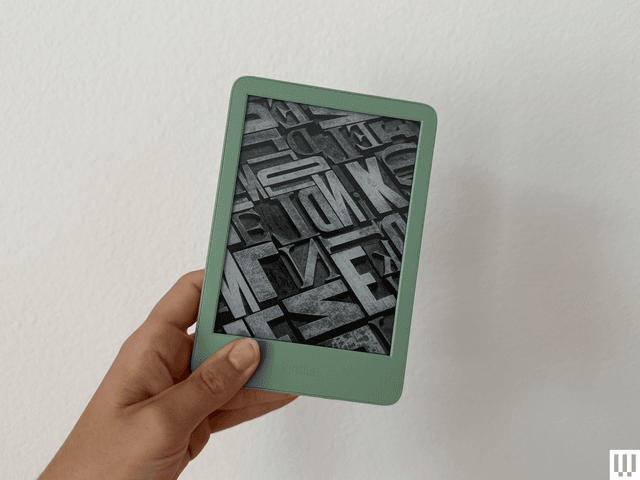
If you’re looking for something lightweight and affordable, Amazon’s 11th-generation Kindle is your best bet. It was updated in 2024 and builds upon the 2022 update that added more storage, a higher-resolution screen, and USB-C charging. The 2024 model has a few nice updates, including a higher-contrast-ratio screen, a brighter front light, and a faster page-turning rate.
You still won’t get a warm lighting feature, so if you want that, you’ll have to upgrade to the Paperwhite or Colorsoft. But otherwise, you’ll still get dark mode on this device (unlike the Colorsoft) and a snappy overall performance and nice screen brightness for the price point. Former WIRED reviewer Brenda Stolyar said the performance was a big improvement over the 2019 Kindle model she was previously using. If you have room to spend a little more, we still prefer the Paperwhite, since you’ll also get a longer battery life and a waterproof build, along with the warm lighting, but this is a great Kindle for the price.
Display 6 inches, adjustable front light Resolution 300 pixels per inch (ppi) Storage 16 GB Weight 5.56 ounces Battery / Charging Up to 6 weeks; USB-C Waterproof No WIRED/TIRED
WIRED- Small, lightweight, and affordable. Fun colors, too!
- Definite performance improvement over previous iteration
- Storage has doubled since last model and now has USB-C charging
TIRED
- No warm lighting option or auto-adjusting light
Comparing Our Favorite Kindles
| Model | Display | Resolution | Color? | Storage | Weight | Battery life | Waterproof |
|---|---|---|---|---|---|---|---|
| Kindle Paperwhite (2024, 12th Gen) | 7 inches, adjustable warm light | 300 pixels per inch (ppi) | No | 16 GB | 7.4 ounces | Up to 12 weeks | Yes, IPX8 |
| Kindle Scribe (2024, 2nd Gen) | 10.2 inches, adjustable warm light, auto-adjusting front light | 300 ppi | No | 16, 32, or 64 GB | 15.3 ounces | Up to 12 weeks | No |
| Kindle Colorsoft (2025) | 7 inches, adjustable warm light | 300 ppi (Black-and-White), 150 ppi (Color) | Yes | 16 GB | 7.6 ounces | Up to 8 weeks | Yes, IPX8 |
| Kindle Colorsoft Signature Edition (2024) | 7 inches, adjustable warm light, auto-adjusting front light | 300 ppi (B&W), 150 ppi (Color) | Yes | 32 GB | 7.7 ounces | Up to 8 weeks | Yes, IPX8 |
| Kindle Colorsoft Kids (2025) | 7 inches, adjustable warm light | 300 ppi (B&W), 150 ppi (Color) | Yes | 16 GB | 11.8 ounces | Up to 8 weeks | Yes, IPX8 |
| Kindle (2024, 11th Gen) | 6 inches, adjustable front light | 300 ppi | No | 16 GB | 5.56 ounces | Up to 6 weeks | No |
What About the New Kindle Scribes?
- Photograph: Nena Farrell
- Video: Nena Farrell
- Video: Nena Farrell
Kindle Scribe Colorsoft, Kindle Scribe (3rd Gen), and Kindle Scribe Without Front Light
Kindle has three new Kindle Scribes that launched between late 2025 and June 2026. There’s now the Kindle Scribe ($500), Kindle Scribe Colorsoft ($630), and the Kindle Scribe Without Front Light ($430). All three have a similar design and software experience, though the Scribe Colorsoft has a color screen and a shorter battery life—only eight weeks of reading time, compared to 12 weeks on the $500 Scribe and an impressive 16 weeks on the Scribe Without Front Light. Like the second-generation model, they’re a great choice for note-takers and students, especially with the long battery life, but I still prefer the second-generation’s price point.
All three models have a new, taller design with an 11-inch screen, slightly slimmer form factor, and updated stylus. They both also have a quad-core chip, a new homepage, and will support a variety of AI features, including AI search (along with some AI tools for summarizing books you’re reading without giving spoilers, though those won’t arrive until next year). Users can connect to Google Drive and Microsoft OneDrive to mark up documents, which the older model can’t do.
Overall, I’d say they’re good devices, but as long as the cheaper second-generation Kindle Scribe is available, I think it’s the better buy. It has some AI capabilities, but no AI search, and has a different homepage design that matches a classic Kindle rather than the notebook-forward design the new ones have. Amazon said it’ll get the same homepage this year, but I haven’t seen it so far. I’m disappointed these new devices are so much more expensive; at that price, you might as well shop reMarkable’s line of digital notebooks and get better features and accessories.
Accessories for Easier Reading
If you’ve ever had a long reading session that gives you hand cramps, these accessories might help. You can check out more options in our Best Kindle Accessories guide.
Tablet Pillow Stand Holder
This pillow stand holder can sit freely on your lap, bed, or any nearby surface while holding up your Kindle. There are two receptacles built into it, one of which is big enough for my larger mugs. I usually drop a snack or my phone into the other one.
Gooseneck iPad Holder
If you’re looking for something to hold up your Kindle that clamps onto something nearby, like your bed frame or a table, this gooseneck tablet holder does a great job. It’s 3 feet tall and has plenty of length to work in all kinds of spots.
E-Reader Hand Strap
This soft silicone strap hooks onto the ends of a Kindle (or other e-reader) without any adhesive needed, and it was nice and secure when I slid my hand into it. It comes with two straps, but a single strap was plenty of security for me.
PopGrips
The PopSockets PopGrips are handy to add to Kindles so you can easily grip your device, but you will need to use an adhesive, add a MagSafe adapter, or grab a MagSafe Kindle case so you can attach it. There are a ton of fun designs, and you can even customize your own, like my custom WIRED PopGrip.
Cases and Covers
Amazon Kindles are, thankfully, not as fragile as a pricey smartphone, but you may still want to add a cover to protect the screen if you’re frequently toting it around in a bag. These aren’t padded for serious drops, but are some of the best Kindle cases I’ve found for daily protection from scratches and scuffs.
Looking for more accessory ideas? Check out my guide to all of the best Kindle accessories. Also, don’t forget that if the Kids’ editions come with cases, so if you’re buying one of those, you won’t need a case.
Clear Case
This sturdy, clear case has reinforced corners if you’re a chronic dropper. The corners didn’t keep accessories from working with the device, but they did give a Kindle a thicker feel than with the Strapsicle or PopSockets cases.
Protective Clear Case
This sleek case is smoother and slimmer, but doesn’t slack off on the protection front.
Blue Twill Kindle Case
If you’re looking for a full cover and a strap, this has it all. This case only comes in blue, but it will fully cover the front of your Kindle, and when you open it, that cover has a built-in hand strap. It also has a little stand built into it too, so it can stand up on its own for you to read.
PopCase Kindle and PopGrip
PopSockets came out with its own line of Kindle cases that have a built-in MagSafe adapter, so you can more easily add your PopSocket grip of choice to it. There are matching sets of cases and grips you can shop for, or mix and match as you please.
About Those Older Kindles
Amazon doesn’t release new Kindles often—the company usually takes a few years between models. Whenever a new one arrives, its predecessor’s stock starts to dwindle. It’s not that we don’t recommend these per se, but I only suggest these if you can find them on sale for the right price. And don’t buy too old a model, since Amazon has started pulling support for older Kindles.
Before making your purchase, cross-check the price against the latest model to make sure you’re paying a fair amount less for the older device.
Kindle (2022, 11th Generation): This is the smallest of the lot at 6.2 inches tall and 4.3 inches wide, with a 6-inch screen. If you find tablets too cumbersome to hold with one hand, consider this one. With this model, Amazon doubled the storage to 16 gigabytes and upgraded the display to 300 pixels per inch (PPI) resolution (up from 167 PPI). It’s tough to find, and I usually don’t see it for less than $75 these days.
Kindle Paperwhite (2021, 11th Generation): This is the next step up from the basic model. It has a bright 6.8-inch screen with adjustable warm lighting, a fast page-turn rate, a USB-C port, and 16 gigs of storage. It’s waterproof too. We like the Signature Edition, which also includes auto-adjust brightness and 32 gigabytes of storage. Don’t recommend spending more than $100 if you can find them.
Kindle Scribe (1st Generation):The original Scribe is a great option for note-takers. It has a giant 10.2-inch screen for taking notes, marking up PDFs, or drawing, and numerous paper formats you can choose, like college-ruled or dotted. It also comes with the Basic Pen, which feels natural to write with and attaches to the side of the Scribe magnetically. It’s only worth it for $230 or less.
Kindle Kids (2022): This is an older kid-friendly model. It comes with a cover, a year’s subscription to Amazon Kids+, parental controls, and a two-year warranty, but the fact that it’s only available secondhand means you’ll likely miss out on the subscription window and may or may not still have a cover. Ideally, don’t spend more than $70 on this one.
Kindle Paperwhite Kids (2021): This older Paperwhite version is a step up from the previous basic Kids models. It has a high-resolution 300-ppi display with an adjustable warm screen and is also waterproof. You shouldn’t spend more than $110 on this one.
Which Kindle Models Lost Amazon Support and Kindle Store Access?
As of May 20, 2026, Amazon stopped supporting Kindles released in 2012 or earlier. That means these models will not be able to get new books through Amazon’s services or be registered to an Amazon account. You will be able to read books already on the device, though, and can manually download documents and books
The following Kindle devices are impacted:
- Kindle 1st Generation
- Kindle 2nd Generation
- Kindle DX
- Kindle DX Graphite
- Kindle Keyboard (3rd Generation)
- Kindle 4
- Kindle Touch
- Kindle 5
- Kindle Paperwhite 1st Generation
What’s the Best Way to Buy or Sell an Older Kindle?
Have an old Kindle lying around? Are you looking at a used one for sale? If you’re trying to figure out what model it is, this Amazon page includes photos, specs, and release years for the entire lineup. Once you know which one you have, you may be able to trade it in for credit toward a newer model.
Most old Kindles probably still work, just with fewer bells and whistles. It’s best to avoid Kindles with keyboards or any other physical buttons other than page-turn buttons. Some older models lost the ability to browse, purchase, or borrow new books directly from the device. However, you’ll still be able to do this via Amazon on your computer or phone and have it sent to your Kindle, which is a better experience anyway. These models include the Kindle 2nd Generation (International), Kindle DX International, Kindle DX Graphite, Kindle Keyboard, Kindle 4th Generation, and Kindle 5th Generation.
How Do You Get Free Ebooks on a Kindle?
If you buy every single book you want to read on a Kindle, it can add up! But there are ways to save some money while reading as much as your heart desires. You may want to subscribe to Kindle Unlimited for $12 a month. You can only choose from the Unlimited catalog, but there are millions of titles there, including audiobooks and magazines. Start out with the 30-day free trial.
If you already pay for a Prime account, you’re eligible for some free ebooks through Prime Reading. There are not as many options as with Kindle Unlimited, and in a lot of cases, you’ll see both Unlimited and Prime options lumped together; you’ll have to look closely to find the free ebooks. It’s still something, and there are even a few magazines.
If you don’t want another monthly subscription and don’t want to continue giving your money to Amazon, take advantage of the ebooks available with your library card. Browsing a digital catalog is not as magical as spending an afternoon looking over every shelf in a library, but such is the ebook life (no one says you can’t read both!). We have a detailed how-to on this that you should check out, but here are some of the takeaways:
- Get a library card for your local branch.
- Check your branch’s website for its ebook offerings. Many libraries use a service called OverDrive.
- Download directly to your Kindle library. They’ll automatically be removed when they’re due back.
If you know someone else with a Kindle, you can lend books between your libraries, just as you would with a physical copy. Follow these instructions from Amazon if you want to share an ebook, but keep in mind that not all books can be loaned.
What Else Can a Kindle Do?
Kindles have helpful features you may want to take advantage of. Long-press a word or phrase to see its definition, highlight it, or take notes. You can also search the entire book for that particular word or phrase or translate it to or from other languages.
Word Wise shows short definitions in small text within the lines. Unfortunately, it’s not available for all books, but when it is, you can turn it on or off and choose more and fewer hints. Clicking the short definition opens a longer one from Word Wise and the New Oxford American Dictionary or Oxford Dictionary of English (you can switch between the two), plus translations, and a Wikipedia page, if applicable.
While reading, tap the top of the screen and click “Aa” to change font size or type—there’s even a font called OpenDyslexic that helps make reading easier for people with dyslexia. You can control margin sizes and line spacing from that menu too.
When a Kindle is connected to a Bluetooth speaker or headphones, VoiceView Screen Reader (accessed through Settings > Accessibility) allows you to use gestures to navigate your device and reads aloud what you’ve pressed. It will also read a book aloud, though it doesn’t sound nearly as nice as an audiobook.
Amazon owns Goodreads, so it syncs seamlessly to Kindles (press the three-dot menu > Goodreads). If you have a Goodreads account, you can review the Kindle books you’ve read or browse your bookshelf and recommendations. Long-pressing a word or phrase, in addition to what is mentioned above, opens up an option to share quotes directly to Goodreads.
There’s a web browser too if you’re connected to the internet (three-dot menu > Web Browser). It’s not the best, so I’d reserve it for emergency searches.
How Do You Update a Kindle?
When Amazon releases a new software update, it will download and install to your Kindle automatically when it’s connected to Wi-Fi. You can check if you’re on the latest software by going to Settings > Device Options > Advanced Options > Update Your Kindle. If it’s not on the latest software version, you’ll see an update available and the Kindle will then prompt you to download and install it.
What Do I Do If My Kindle Colorsoft Has a Yellow Bar?
Following customer complaints in 2024 of a yellow bar at the bottom of the Colorsoft Signature’s screen and discoloration along the edges, an Amazon spokesperson confirmed to WIRED that “customers who notice this can reach out to our customer service team for a replacement or refund.” The company also said it’s “making the appropriate adjustments to ensure that new devices will not experience this issue moving forward.” However, there are still customer complaints about this issue, even with the new model out. We have not run into this issue while testing the Colorsoft, Colorsoft Signature, or Scribe Colorsoft.
Is This a Good Time to Buy a Kindle?
The best time to buy a Kindle is during a major sale event like Amazon Prime Day or Black Friday, because Amazon often has steep discounts. Amazon has always had sales on some (if not all) of its Kindles on past Amazon Prime Day and similar events, like Amazon Big Deal Days.
You can also wait for other sale events if you’re not ready to shop yet. Kindles are often on sale for Black Friday and Cyber Monday, which will occur in late November. Other sales often happen from time to time, but these sale events have consistent Kindle deals, so they’re a good time to wait for if you want a better price.
Are Kindles Good for Students?
Kindles are great for students, though the model they’ll like best will vary on how they use it. If they want to pair it with a stylus for highlighting and be able to take notes, get a Kindle Scribe model. These models also have long battery life, making them great for students to use for weeks on end without worrying about charging. You can get some textbooks on a Kindle too, and send library books to them. For students who love to read but don’t want to take a ton of notes, a regular Kindle or Kindle Paperwhite will be best for them.
Power up with unlimited access to WIRED.Get best-in-class reporting and exclusive subscriber content that’s too important to ignore. Subscribe Today.
Source: www.wired.com