How to use Samsung’s new My FanCam feature to make yourself the main character in your videos

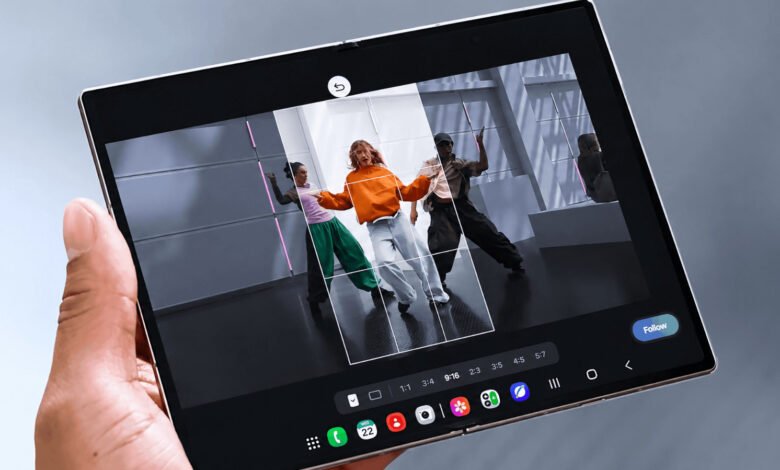
My FanCam works after you record, turning a wider group video into a tighter tracking shot around one person.
Samsung’s My FanCam is built for videos where several people are moving through the frame. Instead of trying to keep one person centered while you’re recording, you can capture the wider scene and choose your subject afterward. Galaxy AI then reframes the existing footage around that person in an aspect ratio you select.
Samsung introduced the feature on the Galaxy Z Fold8 lineup. Because My FanCam works on a video you’ve already recorded, there’s nothing special you need to turn on before shooting.
How to use My FanCam in Samsung Gallery
My FanCam lives in Samsung’s Gallery editing tools. On a supported device, start with a video that contains the person you want Galaxy AI to follow.
Open Gallery and select the video you want to edit. Then, tap the Galaxy AI icon and select My FanCam. Wait for Galaxy AI to identify the people in the video and select the person you want to follow. Next, choose an aspect ratio for the new clip. Finally, tap Follow to create the reframed video.
The aspect-ratio choice is useful if you already know where the finished clip is going. A vertical crop makes more sense for platforms built around portrait video, while a wider frame may work better if you want to keep more of the original scene visible. My FanCam handles the tracking either way, so you can make that decision after you’ve recorded the footage.
Shoot a wider frame if you plan to use My FanCam
My FanCam differs from Samsung’s Auto framing feature in one important way. Auto framing adjusts the composition while you’re recording, while My FanCam does its work afterward. That gives you more freedom to capture the whole scene first, but it also means the feature can only reframe footage that made it into the original recording.
Imagine recording a school performance, a soccer game or a group dance. Rather than constantly moving the phone to keep one person centered, you can keep more of the scene visible and decide who you want to focus on when you edit the clip later.
It helps to think of My FanCam as moving a smaller frame around inside the video you already recorded. If you’re filming several people, keeping the shot reasonably wide gives Galaxy AI more room to reposition that crop as your chosen person moves from one side of the scene to the other. If you start with a very tight shot, there’s simply less surrounding image available for My FanCam to use.
The same limitation applies when your subject moves outside the original frame. My FanCam reframes what the camera captured, but it can’t recover parts of a scene that were never recorded. Samsung also says the feature won’t work when it can’t find a subject to track, and it doesn’t guarantee tracking accuracy. So for something unpredictable, such as a sports game or a group performance, keeping the person you care about comfortably within the wider shot gives the feature a better starting point.
Which Samsung phones support My FanCam?
Samsung currently demonstrates My FanCam on the Galaxy Z Fold8 and Galaxy Z Fold8 Ultra. Both phones launched with One UI 9, which is where Samsung lists My FanCam among its new Galaxy AI features.
One UI 9 isn’t limited to those two phones. Samsung first rolled it out to the Galaxy Z Fold8 Ultra, Galaxy Z Fold8 and Galaxy Z Flip8, with more Galaxy devices set to follow. My FanCam is a little less straightforward, though, since Samsung says individual AI features can vary by device, language and region. So even if your phone gets One UI 9, My FanCam may not come along with it.
Source: www.engadget.com