
The age of sharing grainy, low-res photos is long behind us.
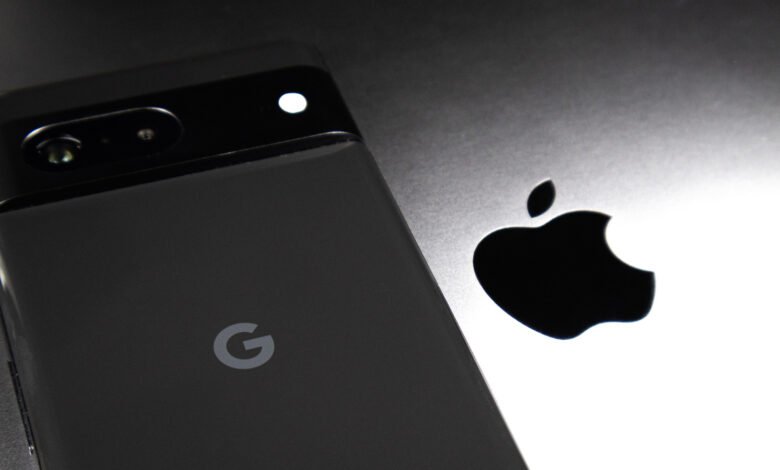
Having friends or family with different phone brands than your own can lead to all manner of everyday nuisances, from attempts to help navigate unfamiliar settings to coming up short when you need a compatible charger. One such problem can arise when sharing photos and videos across these devices, especially between Android and Apple phones. While sharing media across brands has always been relatively intuitive, preserving quality hasn’t always been so clear-cut.
For the longest time, sending a photo from an Android device to an iPhone typically took the quality down a few notches. This came down to the different messaging systems — with Apple using Short Message Service (SMS) texting and Android using Rich Communication Services (RCS). Fortunately, alongside embracing Apple Intelligence and deeper customization, iOS 18 ushered in RCS support on iPhone, which not only solved the discrepancy but also allowed iPhone users to access the higher image quality available via RCS.
How to use RCS to send images from Android to iPhone
Naturally, if you’re an iPhone user and you want to preserve image quality across the board, you’ll want to make sure RCS is enabled. Fortunately, iOS 18 has RCS turned on by default, and you can easily check if it’s enabled if you want to be sure. Simply go to Settings > Apps > Messages on your iPhone, scroll down to RCS Messaging, and check that it’s toggled green.
Of course, there’s more that can be done to guarantee quality. If you’re on the Android side of things, Google Messages will still send photos in a compressed form by default; to maintain quality, you’ll want to press the HD or HD+ button before sending. Here, simply make sure your media is set to “HD+ Original Quality” rather than “HD Optimized for Chat” to avoid compression and maintain the original file’s quality.
Sending videos and larger images between Android and iPhone devices
There’s still the question of higher file sizes and videos, both of which can still fall victim to compression, not to mention the RCS attachment size limit of 100MB. There are a couple of options to make use of here, such as email or alternative messaging services, but Google Photos stands out as a simple option if sharing to an iPhone with Google Photos. Users with the Google Photos app, when sharing an image, can select “Send in Google Photos” and share with another user of the app. In that same respect, Google Drive is also a solid option for sharing large files between different brands.
It’s also worth noting that Android Quick Share now supports AirDrop. This feature is available on Pixel phones from 8a and beyond, as well as a number of Samsung phones (including much of the Galaxy S family). If your Android phone isn’t compatible with AirDrop, though, you can instead tap the “Use QR Code” option in Quick Share (accessible through the same “Share” option when you select the content you wish to share) and have an iPhone user scan that code. While this is more range-limited, it does at least serve as a solid last resort.
Source: www.engadget.com