

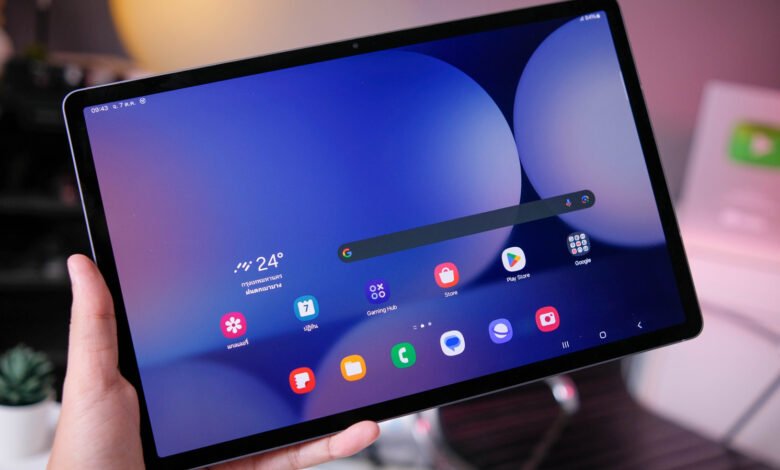
For when you need to speed up or unfreeze your Samsung tablet.
Rebooting a Samsung Galaxy tablet is one of the simplest ways to fix a wide range of issues that commonly pop up. Knowing the right method for your situation can save you a lot of frustration. Whether your tablet is running slowly, an app has stopped responding or the screen just froze on you, a restart is almost always the best first step you can take to fix the problem.
You may not even realize it, but there are three methods for rebooting your Samsung Galaxy tablet: a standard restart for everyday slowdowns, a force restart for completely frozen screens and a last-resort recovery process for those situations when nothing else works. Each method is straightforward, takes just a few minutes of your time and won’t put your data at risk. We’ll guide you through every step so you can handle the situation in the best way possible.
How do you restart a Samsung Galaxy tablet that’s responding normally?
Sometimes, your tablet may be working just fine but has gotten a bit too slow for your liking. All devices could use a restart every now and then, and your Samsung Galaxy tablet is no different. A standard restart is the quickest fix for sluggish performance or minor app issues.
Restarting your Galaxy tablet using buttons:
-
Press and hold down the Power button on the side and the Volume Down button at the same time.
-
When the power menu appears, tap Restart. Confirm your selection.
-
Your tablet powers off completely and will reboot automatically.
Restarting your Galaxy tablet through the UI:
-
Swipe down on the screen to bring up the quick settings panel. Press the power button.
-
Select Restart and confirm your pick again.
Both methods are safe and quick and won’t make you lose any of your data. A good rule of thumb is that if your tablet has been feeling sluggish or an app keeps crashing, a standard reset is worth trying first.
How do you force restart a Samsung Galaxy tablet that’s frozen?
If your screen is frozen, it won’t respond to touch calls for a force restart. This method will bypass the software entirely and force the hardware to reboot.
-
Press and hold the Volume Down button and the Side/Power button simultaneously.
-
Keep holding for at least 7 seconds.
-
You’ll know it worked when the screen goes black, the tablet vibrates briefly and the Samsung logo pops up as it restarts.
Samsung’s official support documentation states that this is the recommended approach when a device is frozen or otherwise not responding to any of your inputs. It’s safe, effective and reversible.
What should you do if nothing works?
If both above-mentioned methods fail to get your tablet going, don’t panic! There are still things you can do to get your device to bend to your will.
-
Hold the Power button for up to two minutes to force a complete shutdown.
-
Leave the tablet powered off for one minute, then press the Power button again to reboot it.
-
If the tablet is still not responding, you should let the battery drain completely. Once that’s done, plug it in and charge for 30 minutes before powering on again.
In case any of these reboots aren’t helping with whatever problem you have with your tablet, you might want to consider a factory reset. The problem is that this method wipes the tablet completely and restores it to its original state. All the apps, photos and personal data will be deleted permanently, so you should back up your files before moving forward.
In order to perform a factory reset, you have to go to Settings > General Management > Reset > Factory Data Reset. This will require multiple confirmations on your part.
If the factory reset still doesn’t resolve your issue, the problem may be hardware-related. You could try the diagnostic tool within the Samsung Members app. Launch the app, go to Support and run the tool to identify any underlying issues. It will check software, battery, network connections, sensors, buttons, cameras and more. Your tablet might be in need of some extra help from Samsung Support or a repair shop, and that’s the best way to figure things out.
Most tablet troubles are easier to solve than they first appear, and a simple reboot is usually all it takes to get things running smoothly again. Now that you know multiple ways to do this, you’ll surely find a way to fix your Samsung Galaxy tablet.
Source: www.engadget.com